
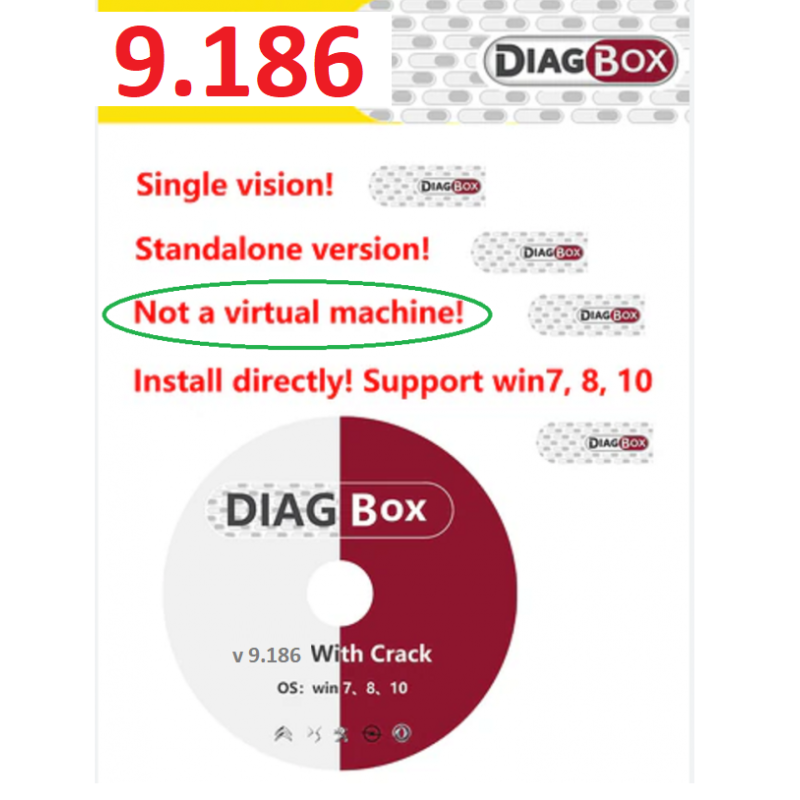
DIAGBOX V9.186 LEXIA3
The latest fully working Peugeot and Citroen diagnostic and programming software Standalone VERSION
Delivered to your email address. In case of any problem: prodaja@fromserbia.rs
Top reasons to get DIAGBOX V9.186:
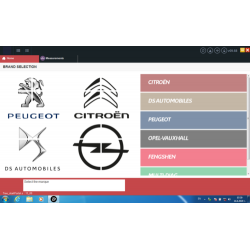
1.V9.186 work for Citroen/Peogeot/DS Automobiles/Opel Multi-Brands
2.V9.186 pre-activated version, install directly, no need VM, noneed to wait seller to activate for you,save time and money .
4.V9.186 Support win7 / win8 / win10
5.V9.186 FULL in 24 languages Can be set after installation.
6.V9.186 can work with any version of lexia3 / lexia XS
-V9.186 Pay Attention:
1.We have tested win 10 and 11 computers, and they run perfectly. If your computer cannot be installed, please use another computer to install it. Your computer may have faults or system defects , must follow video step and step !
2.It can be used on as many machines as you like so its not limited to one pc.
3.The fully working diagnostic and programming software.
4.Since this is software, once purchased, we do not accept refunds for any reason! When you file a dispute, you will receive a reply from our lawyers within a certain period of time!
Note:
1.When you buy, you should contact us, tell us your email address, and we will send you the download link. (Only download link, no real package)
In case you are unable to install the software you bought from us, you can always go to the installation help option located in the store menu. After that, we'll schedule an appointment that suits both you and us to perform the installation on your computer via remote access via the AnyDesk application.
If you have any problem with downloading the files you bought and received at your email address, feel free to contact us at prodaja@fromserbia.rs
You will receive the files at your email address within 0 to 24 hours from the time of purchase.
How to install Diagbox 9.186
Below is a step-by-step guide in English on how to install Diagbox 9.186:
Diagbox 9.186 Installation Guide
Introduction
This guide will help you install Diagbox 9.186 on your Windows system. Please ensure you have administrator privileges and that your computer meets the system requirements before beginning.
1. Pre-installation Checklist
System Requirements:
Verify that your computer runs a compatible Windows operating system (commonly Windows 10 or later), has sufficient RAM, and enough free disk space.
Backup and Restore Point:
It’s a good idea to back up important data and create a system restore point before proceeding.
Antivirus Considerations:
Temporarily disable your antivirus software if necessary, as it may interfere with the installation process.
2. Download and Extraction
Download the Installer Diagbox 9.186 from the link which you got from us:
Extract Files:
If the installer is provided in a compressed format (e.g., ZIP or RAR), extract all files into a folder on your computer. Make sure all required files are extracted before proceeding.
3. Installation Process
Run the Installer:
Navigate to the folder where you extracted the files. Locate the installer file (typically named PSA_DIAG_INSTALL_1.4.5.1 or similar).
Administrator Mode:
Right-click on the installer file and choose "Run as administrator" to ensure the installation has the necessary permissions.
Follow the Installation Wizard:
Accept the End User License Agreement.
Choose the installation directory (you can use the default location if you’re unsure).
Click on "Install" and allow the process to complete without interruption.
Wait for Completion:
The installer will copy files, install necessary components, and configure settings. This process may take several minutes.
4. Post-installation Configuration
Restart if Necessary:
If prompted, restart your computer to finalize the installation.
Re-enable Antivirus:
Once the installation is complete, re-enable your antivirus software.
Initial Launch:
Open Diagbox 9.186 to confirm that the installation was successful and that the software starts correctly.
Driver Installation:
If Diagbox requires specific drivers (for diagnostic interfaces), follow the manufacturer’s instructions to install these drivers.
5. Troubleshooting Tips
Installation Issues:
If the installation fails, try running the installer in compatibility mode (right-click on the installer, go to Properties > Compatibility, and select a suitable Windows version).
Ensure all Windows updates are installed and that your system meets all prerequisites.
Updates and Patches:
Check if there are any updates or patches available for Diagbox 9.186 that might address known issues.
Conclusion
By following the steps above, you should be able to successfully install Diagbox 9.186 on your Windows system. If you encounter any issues during installation, refer to the troubleshooting tips or seek assistance from official support channels.
Note: This product is sent to the email address you provide with your order (digital delivery, no physical shipment). In case of any problem, contact us at prodaja@fromserbia.rs.
DIAGBOX V9.186 LEXIA3
The latest fully working Peugeot and Citroen diagnostic and programming software Standalone VERSION
Delivered to your email address. In case of any problem: prodaja@fromserbia.rs